How to Lock and Secure Notes on Android — All Methods

Whether you share your tablet with family, frequently hand your phone to friends, or carry sensitive financial data, protecting your private notes is essential. Here is the definitive guide to securing your thoughts on Android.

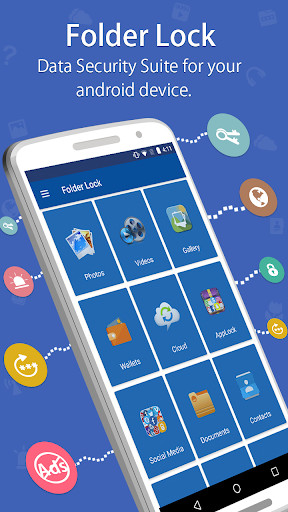
Folder Lock Android dynamic data protection promo
E
Editorial Team
· Last Updated: November 2025 · 8 min read
Quick Answer

How to lock notes on Android: You can secure notes using native OS features like Samsung Secure Folder, by enabling PIN/password protection within specific apps like Google Keep and Samsung Notes, or by installing a dedicated privacy app. For complete device-wide file and app protection, we recommend setting up a third-party App Locker or Folder Lock utility.

Your notes hold your passwords, your journals, and your financial life. Leaving them unlocked is like leaving your front door wide open.

Android theft protection and physical device security

Android does not offer a single, universal "lock all notes" button because the Android ecosystem is heavily fragmented. Instead, security features depend entirely on which note-taking app you use, what phone manufacturer you bought from, and what operating system version you are running.

If you want to password protect notes android devices store locally, you have three primary paths: use the native security features built into your specific app, use a manufacturer-provided secure partition, or lock the entire app at the system level.

How to Lock Notes on Android — All Methods

Before downloading third-party software, it is worth checking if your current device and app combination already supports note locking.

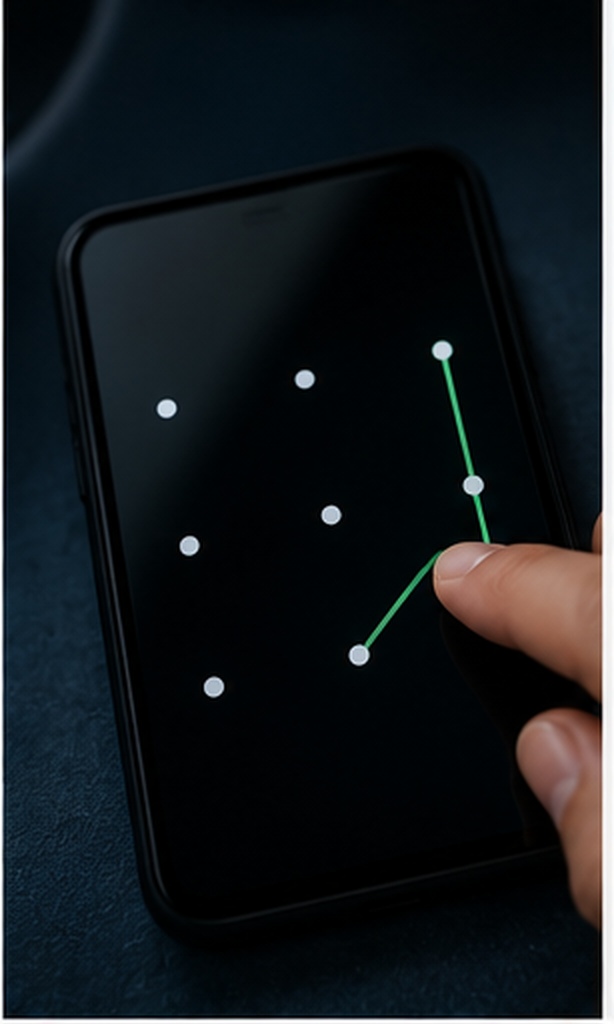
Android native security interfaces showing PIN, pattern, and fingerprint locks

How to lock samsung notes folder

Samsung devices come with excellent built-in privacy tools. The native Samsung Notes app allows you to lock individual notes, and the operating system includes Samsung Secure Folder.

Best For: Galaxy device owners who want native biometric integration.
  1. Open the Samsung Notes app.
  2. Tap and hold the note you wish to secure.
  3. Tap the Lock icon (padlock) in the bottom menu.
  4. Follow the prompts to set up a password, PIN, or biometric (fingerprint) lock for the app.

Limitation: This locks individual notes, but does not hide the titles of the notes in the main list. To completely hide the app, you must move Samsung Notes into the Samsung Secure Folder.

Password Protect Google Keep Notes

Google Keep is the default note app for many Android users, particularly on Pixel and Motorola devices. Unfortunately, Google Keep does not have a native password lock feature for individual notes.

To secure Google Keep, you must rely on OS-level app pinning, Android's Work Profile, or a third-party app locker. If you share your phone, anyone who can open the Keep app can read your notes. To fix this, jump down to our third-party app lock recommendation.

Android secure folder without lock screen

On devices running Android 15 and later, Google introduced "Private Space"—a native secure folder. This allows you to hide specific apps, including your notes app, inside a separate profile.

Restricting external device access on Android phones for enhanced privacy

If your device is running Android 14 or older and is not a Samsung, you will need a dedicated secure folder app or app locker android solution.

Our Editorial Top Pick

The Tool We Recommend for Most Users

Native methods are great if your manufacturer supports them, but they often leave gaps—like exposing note titles or failing to lock the app upon exit. For absolute peace of mind across any Android device, we recommend Folder Lock for Android.

Of all the options we covered, Folder Lock provides the most robust isolation. It doesn't just lock apps; it encrypts your private data, offers panic-switch features, and logs unauthorized access attempts. We recommend it because it survives phone restarts and OS updates reliably.

Folder Lock Android main screen data security suite

Why Use a Dedicated App Lock?

If you are wondering what makes a third-party tool like Folder Lock different from a basic screen lock, here is a breakdown of the security layers it adds to your device.

Application-Level Locking

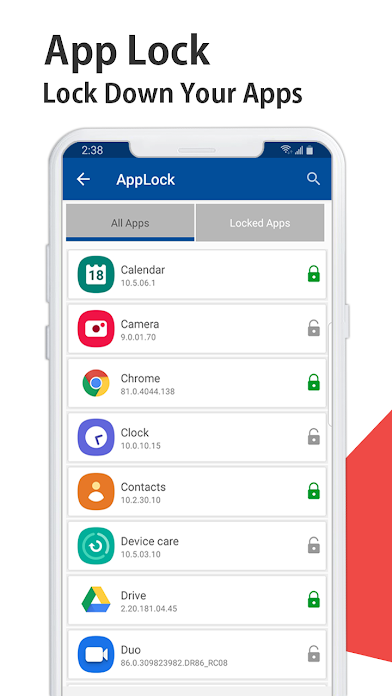
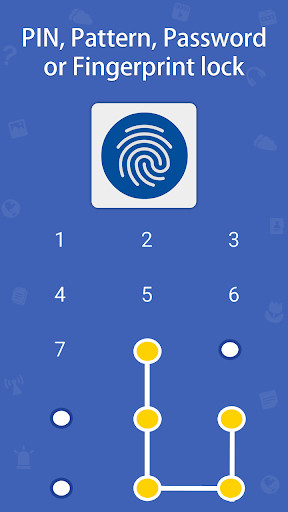
Unlike screen locks, app lockers require a secondary PIN, pattern, or fingerprint specifically to open Google Keep, Evernote, or your banking apps.

Stealth Mode (Invisible App)

Stealth mode disguise disguising Folder Lock as a functional calculator on Android

Advanced tools can hide their own app icon from the Android drawer. The lock app is only accessible by dialing a secret code into the phone's keypad.

Intruder Tracking & Logging

Audit trail and data logging capturing unauthorized access

If someone tries to guess your master password, the system actively monitors the failed attempts, logs the event, and captures photographic evidence of the intruder using your device's front camera.

Encrypted Cloud Synchronization

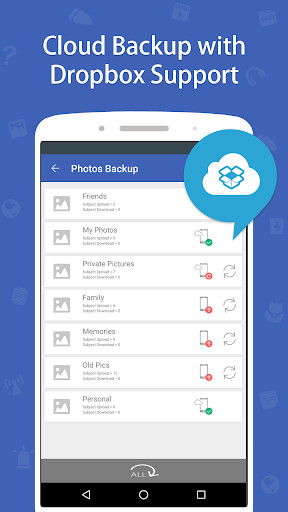
Android folder lock integrating directly with secure cloud backup

Unlike standard backups, specialized security tools encrypt your data before syncing it to platforms like Google Drive or Dropbox, ensuring your private thoughts remain unreadable even if your cloud account is compromised.

Methods Comparison Matrix

App locker interface showing locked WhatsApp and other applications

Feature Availability

Select a view to compare approaches
Security Feature Samsung Secure Folder Google Keep (No Lock) Folder Lock App
Individual Note Locking
Hide Entire App from Home Screen
Survives Device Reboot
Works on All Android Brands
Samsung Only
Lock ANY App (WhatsApp, Banking, Notes)
Intruder Selfie (Logs failed attempts)
Fake Password / Decoy Mode
AES-256 Encryption for Vault Files

= Fully Supported     = Not Supported / Limited

How to Draft Secure Notes Directly Inside Folder Lock

Folder Lock Android interface for writing and encrypting secret notes

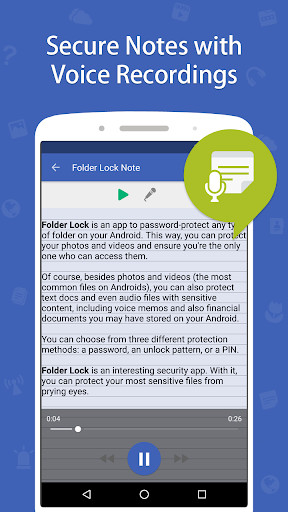
While you can use an app locker to restrict access to third-party tools like Google Keep, the most secure method is to draft your sensitive information entirely within a protected environment. Folder Lock features a built-in, AES-256 encrypted note-taking module designed specifically for this purpose.

  1. Authenticate your identity: Open the security application on your Android device and enter your master password to access the main dashboard.
  2. Navigate to the text vault: Tap on the "Notes" category from the primary feature list, then open the "My Notes" directory where your text files are securely housed.
  3. Draft your content: Tap the plus (+) icon located on your screen to generate a blank document. Type out your sensitive information, private journals, or passwords, and assign the document a recognizable title.
  4. Engage the encryption: Once you are finished writing, tap the save icon (represented by a checkmark). The application will instantly encrypt the text, confirming the action with a brief on-screen notification. Your thoughts are now fully shielded.
Editorial Tip: Because this module is integrated directly into the security software, any notes created here can be seamlessly synchronized across your other devices (including Windows and iOS) without ever losing their cryptographic protection.

Mobile Privacy Settings Audit

Android security settings interface for baseline privacy audit

Before relying on any app lock, ensure your baseline Android security is solid. Use this interactive checklist to audit your device.

Screen Lock is active: You use a PIN, Pattern, or Biometric lock to access the home screen.
Notifications hidden on lock screen: Note contents cannot be read from the lock screen notifications.
App Lock installed: A secondary lock is required to open sensitive apps like Google Keep or Banking apps.
Cloud backup secured: Your Google Drive or Samsung Cloud account is protected by Two-Factor Authentication (2FA).

Troubleshooting & Safe Recovery

A common search is "how to see locked notes on android" or "how to unlock folder lock in android" when a user forgets their PIN. Because legitimate security apps use encryption, there is no "backdoor" to bypass the lock screen. You must use official recovery channels.

Android pattern and PIN recovery process for safe owner access

How to recover access to a locked app if I forgot my PIN?

If you are locked out of Folder Lock or Samsung Secure Folder, follow the owner-recovery process:

  1. Email Recovery: Most app lockers require you to set a recovery email during setup. Tap "Forgot PIN/Password" on the lock screen. A reset link will be sent to your registered email.
  2. Biometric Fallback: If you enabled fingerprint unlock, use your fingerprint to bypass the PIN, then navigate to settings to change the PIN.
  3. Samsung Account: For Samsung Secure Folder, entering the wrong PIN repeatedly will prompt a "Forgot PIN" option, allowing you to reset it by logging into your Samsung Account.
Warning: Do not uninstall a third-party app locker or clear its data in an attempt to bypass the lock. If files were encrypted inside a vault, uninstalling the app may permanently delete the encrypted files.

App lock behavior after phone restart

A high-quality app locker android tool will automatically run on startup. However, due to Android battery optimization, your OS might kill the app locker in the background. To fix this: go to Settings > Apps > [Your App Locker] > Battery, and set it to "Unrestricted" so it always protects your notes, even after a reboot.

Frequently Asked Questions

Protecting passwords and credentials using Folder Lock for Android
You can lock notes natively if your app supports it (like Samsung Notes). If you use an app like Google Keep, which lacks native locking, you must install a third-party App Lock utility to password-protect the entire application before it can be opened.
Google Keep does not have a built-in password feature. To protect your Google Keep notes, download an app locker, select Google Keep from the app list, and assign a PIN or fingerprint requirement to it.
Premium app lockers integrate with device administration privileges to start immediately upon boot. However, if Android's battery optimizer forces the app closed, it may fail. Always set your security apps to "Unrestricted" battery usage.
For comprehensive security, we recommend tools like Folder Lock for Android, which not only lock the app icon but also offer encrypted vaults for standalone text files, photos, and financial documents.
If you want a note visible on your lock screen (e.g., emergency info or a shopping list), go to Settings > Lock Screen > Contact Information, and type your note there. It will display without unlocking the phone. Be careful not to put sensitive data here.

App Locker Pricing: What You Get

Folder lock gallery view showing locked photos videos and files

If you decide to use our recommended tool, Folder Lock, here is an honest breakdown of what you get for free versus the premium upgrade.

Free Version

$0
  • Basic App Locking (PIN/Pattern)
  • Standard Photo/Video Vault
  • Local Secure Notes
  • Ad-supported interface
Download free version →

Premium Upgrade

Full Access
  • Stealth Mode (Hide App Icon)
  • Panic Switch & Decoy Login
  • Cloud Backup integration
  • Zero advertisements
View full version pricing →

The Bottom Line

Folder Lock Android promotional banner showing stealth and security

Securing your notes on Android requires matching your needs to the right tool. If you only use Samsung Notes, the built-in locks are sufficient. But if you use Google Keep, Evernote, or have sensitive text files on a non-Samsung device, installing a dedicated app locker is a non-negotiable step for mobile privacy.